

How to Free Up Storage on Mac Safely
Your Mac is nearly full and an update or export needs room. Start with files you can replace and check what each cleanup action will do.
WorksdemHow do you free up space without losing useful files?
Start by checking which categories take up room in Storage. Separate replaceable files such as old installers from documents and backups you want to keep. Diskivo’s Space Cleanup lets you review entries before confirming a removal.
Free up space through macOS settings
-
See what is taking up space
Open System Settings → General → Storage and let macOS finish calculating. Use the info button next to a category to see its details.
-
Start with files you recognize
Check Downloads and Documents for installers, extracted archives, and exports you can recreate. For an iCloud file, decide whether you want to keep it in the cloud and remove its local download.
-
Check the space you recovered
Review what’s in Trash before emptying it. Return to Storage and let macOS update its figures.
How to free up storage with Diskivo
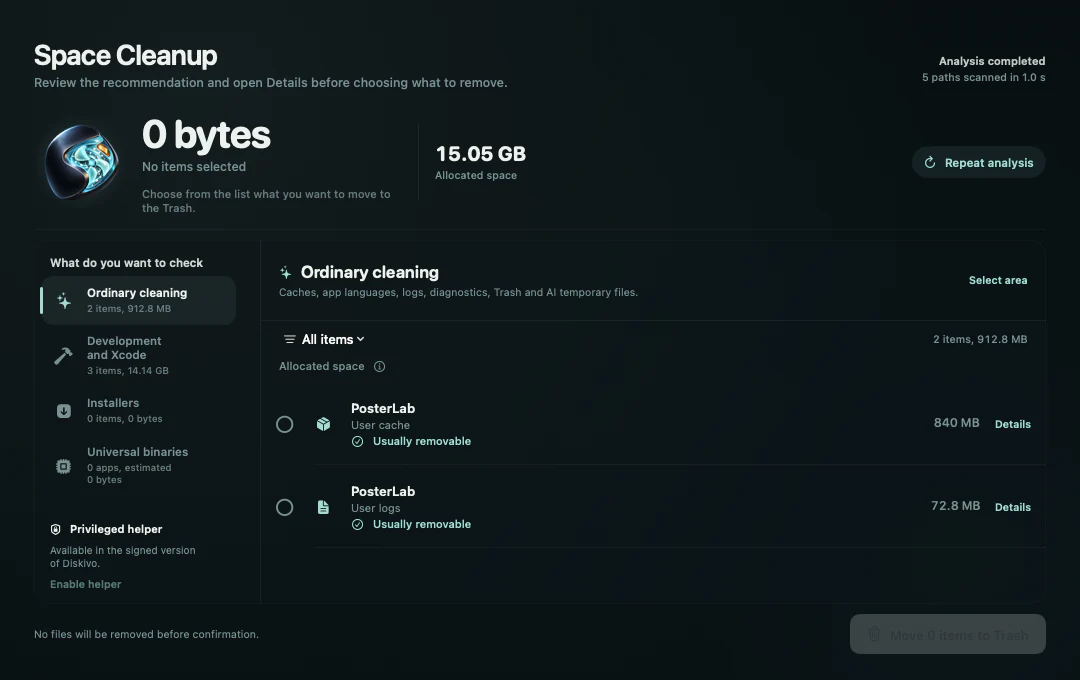
Diskivo’s Space Cleanup measures caches, logs, installers, and developer files. You can review each item and check how it will be removed before confirming the cleanup.
-
Scan your Mac in Diskivo
Choose Space Cleanup in the sidebar and click Analyze the space. Wait for the scan so you can compare how much room each result takes up.
-
Open the category you want to check
Use Ordinary cleaning to review caches, logs, and diagnostics. Open Installers to check packages and disk images. If you use Xcode, see Development and Xcode.
-
Read the details before you select anything
Open Details to check what an item is for and how Diskivo removes it. Select items you recognise and still want to remove.
-
Check how each item will be removed
Once you have selected the items, use the removal button to open the summary. Check the list for permanent actions. If something looks unfamiliar, go back and deselect it.
What can you remove safely?
Installers and caches
Before removing an installer, check that you can download it again. An app may recreate caches, but you may have to wait while it starts or downloads content again.
Downloaded iCloud Drive files
To keep a file in iCloud, check that it has synced and use Remove Download if available. Deleting the iCloud Drive file itself removes it from synced devices.
Backups and working files
Keep the backups you still rely on and your projects’ source files. Before deleting a backup, check its date and which device it belongs to.
Frequently asked questions
Does the scan delete anything?
Analyze the space only measures the files Diskivo finds. Cleanup starts after you choose items and confirm.
Why hasn’t my free storage gone up yet?
If Diskivo moved files to Trash, they still occupy space until Trash is emptied. Check the removed files before emptying it.
Can I clear all System Data?
System Data groups several types of files. Start with specific items you can identify, such as a cache or old development files.
What’s the difference between moving and deleting an item?
An item in Trash is recoverable until Trash is emptied. Check the summary carefully when it says an operation is permanent.