

How to Check Xcode Storage Usage on Mac
Build data and simulators can fill up your Mac even when the Xcode app itself hasn’t grown. Measure them separately before deciding what to remove.
WorksdemWhat takes up storage besides the Xcode app itself?
Build files, device support, and simulator runtimes are stored separately. Use Xcode to manage installed runtimes. Diskivo’s Development and Xcode view compares the sizes of detected developer data.
Review components and archives in Xcode
-
See the installed runtimes
Open Xcode → Settings → Components. Check which simulator versions are installed and how much space each uses.
-
Remove a component you no longer use
Open the information for a component to see its removal option. Keep the iOS versions you still need for testing.
-
Check archives for distributed builds
Open Window → Organizer and review your archives. Keep those for distributed builds, along with their debug symbols, so you can investigate crashes later.
How to check Xcode storage with Diskivo
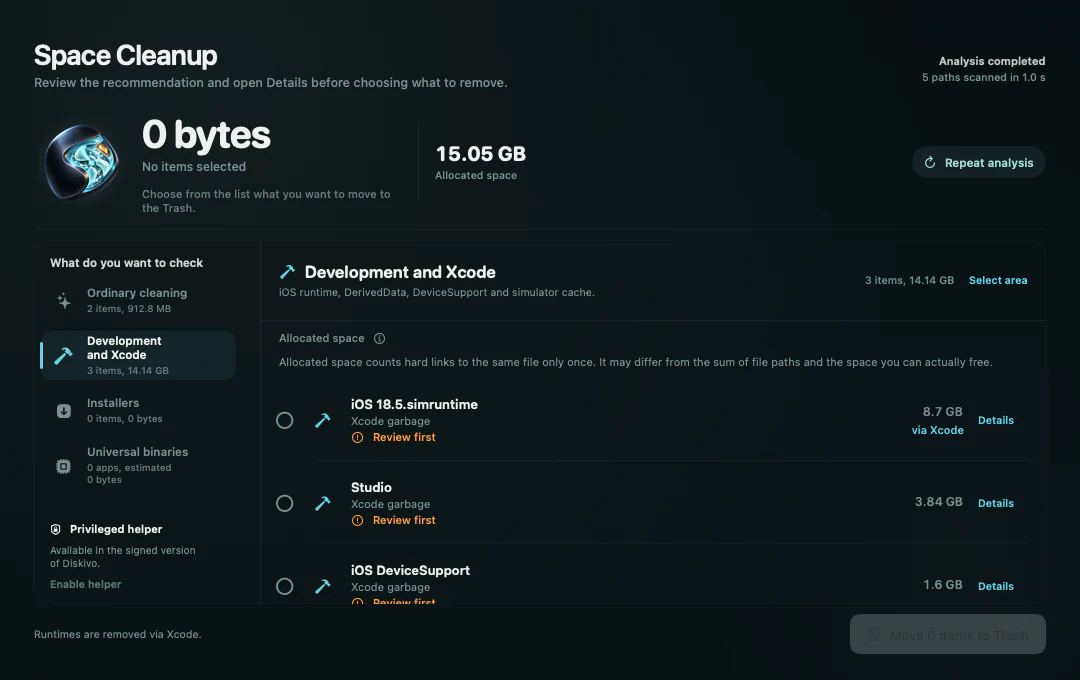
In Development and Xcode, Diskivo measures the developer data it detects and lists each item with its size. Compare DerivedData, DeviceSupport, runtimes, and simulator caches before you decide what to remove.
-
Start the scan in Diskivo
Open Space Cleanup and click Analyze the space. When the scan finishes, select Development and Xcode to see the sizes of the detected items.
-
Check what the largest items are for
Open Details on a result. DerivedData contains build files. An iOS runtime lets Simulator run a particular version of iOS. Keep the runtimes you still need for testing.
-
Check the removal summary
After you select entries, open the summary. If you included a runtime, Diskivo identifies that Xcode will uninstall it permanently. Files moved to Trash remain recoverable until you empty it.
What Xcode data can you remove?
DerivedData
Check the project and size before selecting removable build files. Xcode recreates them as needed, which can make the next build take longer.
Simulator runtimes
Remove runtimes you no longer use. If you later need to test that version, you’ll have to install it again. Removing an installed runtime is permanent.
Archives and debug symbols
Keep archives for builds you’ve shipped. The matching .dSYM files are useful when you need to read crash reports for those builds.
Frequently asked questions
Why is the total different from the size of the Xcode app?
Development and Xcode measures detected developer data such as caches and runtimes. The Xcode app bundle takes up space separately from the data you use to build and test.
Why can I see an item’s size but can’t select it?
Diskivo also lists some items for reference. Open Details and check the item’s row to see which actions are available.
Can I remove a simulator runtime and keep Xcode installed?
Yes. Manage the runtime in Xcode’s Components settings. When you select a runtime for removal in Diskivo, the summary explains that Xcode will uninstall it.
Why does DerivedData return after cleanup?
Xcode regenerates build files and indexes as you reopen or rebuild projects. Measure them again after working on your projects if you want an up-to-date total.