

Help with Diskivo.
From your first scan to your license: find answers to common questions here. If you still need help, use the form below.
Contact supportLicense and devices
I’ve paid. How do I activate Diskivo?
If you started the purchase in the app, return to Account and license: Diskivo checks for payment confirmation. An internet connection is required. If you purchased on the website or changed Macs, recover your license using the order email. Do not purchase again if activation is delayed.
I can’t find my license or I’ve reached my Mac limit.
Open Recover your license and enter your purchase email. The link is valid for 30 minutes; check your spam folder too. The management page lists your registered devices and lets you deactivate an old Mac before activating another. Your plan determines the number of Macs available.
Payments and subscriptions
How do I manage or cancel my subscription?
Recover your license and open billing management to access the Stripe portal. Cancelling renewal is not the same as a refund. Your license validity date is shown in Account and license and on the management page.
How do I request a refund or report a payment issue?
For a refund request or payment issue, choose Payments and subscriptions and include your purchase email and the reason, without card details. Worksdem handles requests and tax documents; Stripe processes payments. Your statutory rights apply.
macOS permissions
Why are some areas inaccessible?
macOS protects certain folders. For a more complete scan, open System Settings → Privacy & Security → Full Disk Access and enable Diskivo, then quit and reopen the app. Diskivo reports paths it cannot read. This permission does not replace any administrator authorization that may be required.
Why does macOS request other permissions?
Some features, such as reading login items or maintaining system areas, may require additional approval. Read the explanation in Diskivo and in the macOS dialog. Enter a password only in the system prompt if requested: support will never ask for it.
Scanning and cleanup
Does a scan delete files or upload them?
File scanning takes place on your Mac and deletes nothing. Review the results and your selection before confirming a cleanup. Licensing, payments and update checks use the network, but file names, paths and scan results stay local.
Why does the space found differ from the space freed?
Logical size, disk usage and local copies of cloud files do not always match. Caches and files can change after a scan, and permissions also affect results. Items moved to the Trash still take up space until you empty it. Check the Trash first: emptying it is permanent.
Installation and updates
How do I install Diskivo and find the version?
Download Diskivo from the official website and move it to Applications before opening it. macOS 14 or later is required. Find the app version in Diskivo → About Diskivo, and the macOS version in Apple menu → About This Mac. If macOS reports an invalid signature or a damaged app, do not bypass the check: contact us.
How do I get Diskivo updates?
In the distributed version, use Diskivo → Check for Updates. You can also enable automatic checks. The update is verified before installation and requires your confirmation. If an operation is running, wait for it to finish before restarting. Development builds may have the public update channel disabled.
Find your way around.
Four reference points for reviewing results before taking action. Open a screenshot to see it at a larger size.
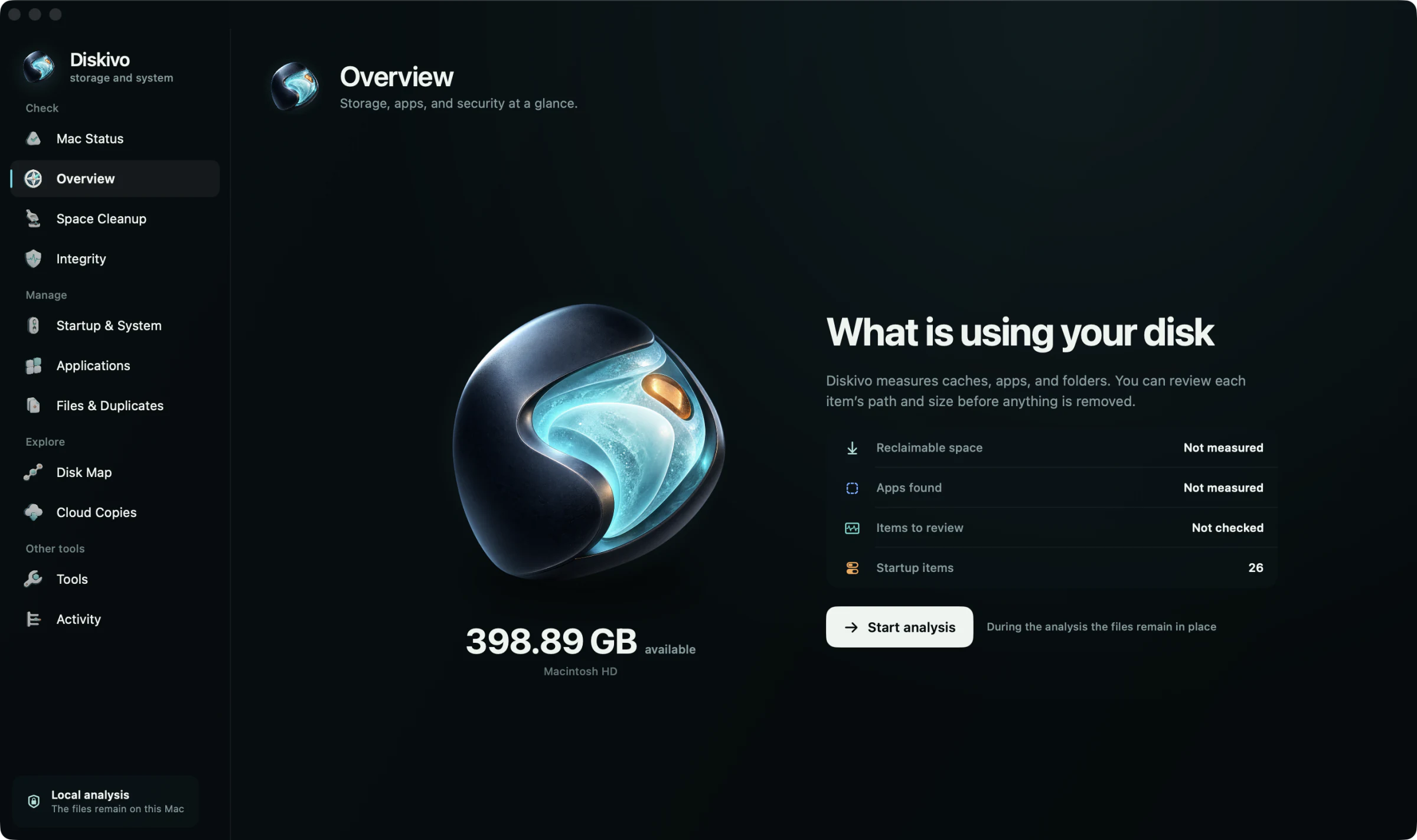
Start with the overview
Choose a feature to inspect and start a scan. Reading your Mac does not automatically run a cleanup.
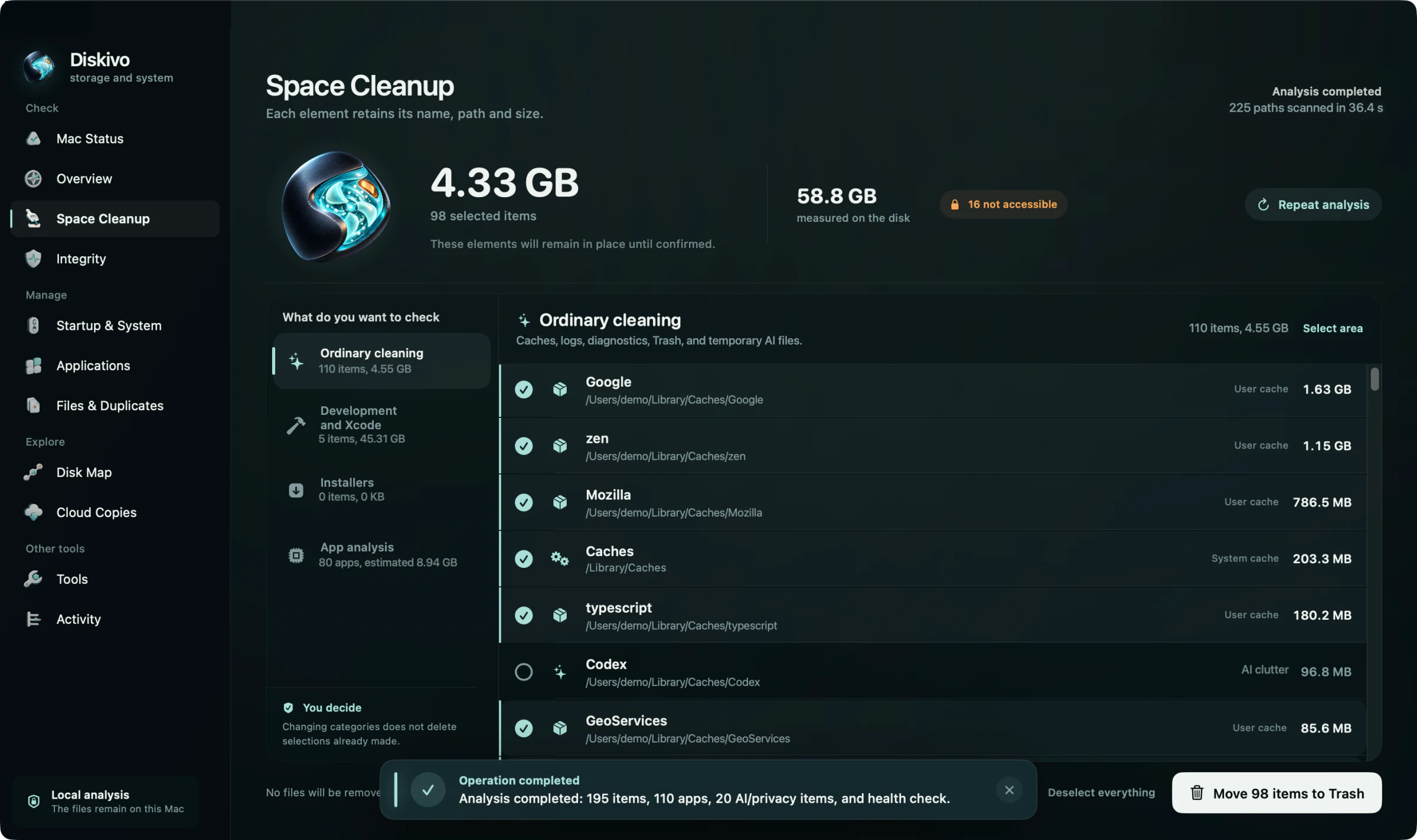
Review your selection
Expand categories and check the selected items before confirming. If you are unsure about an item, leave it unselected.
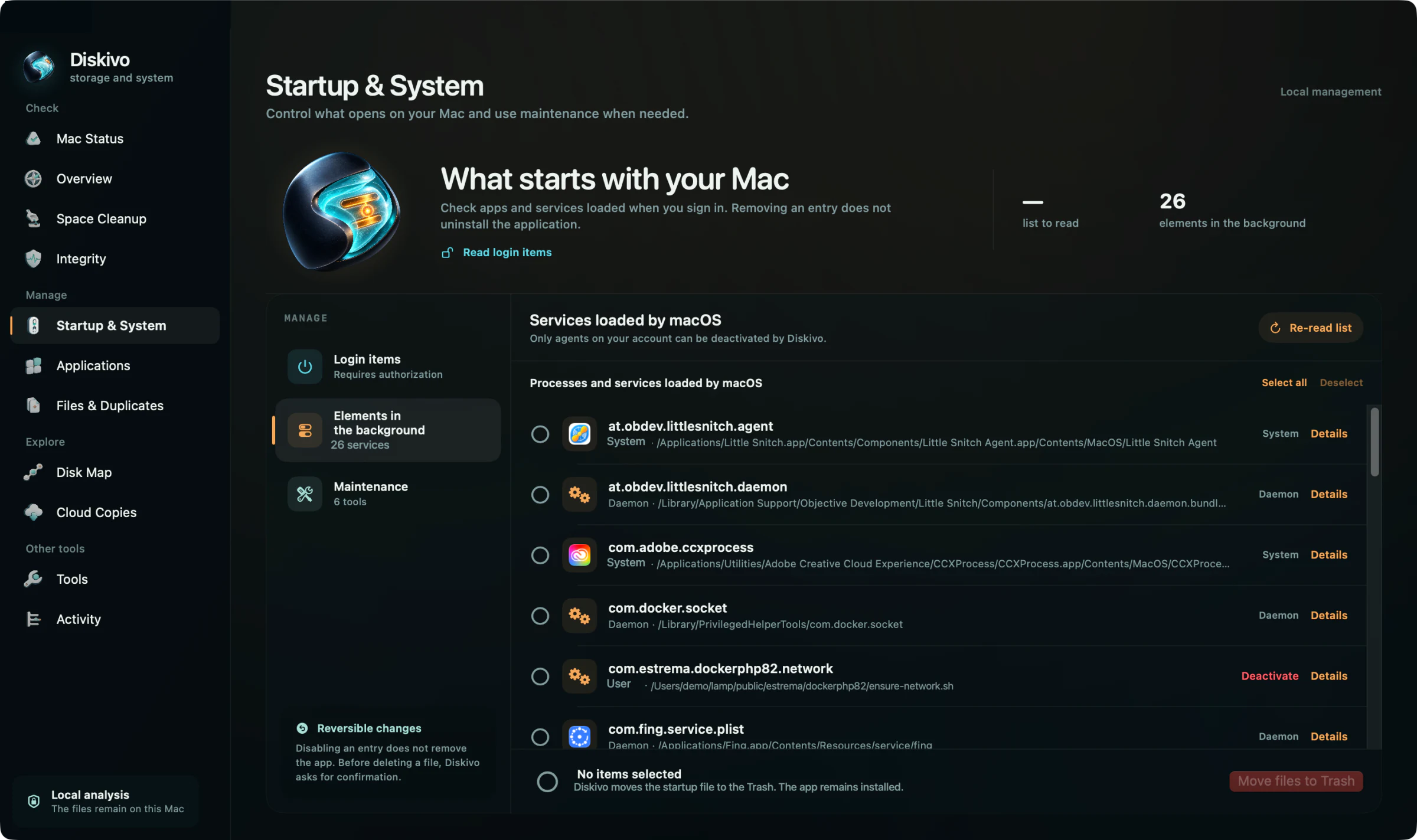
Tell startup items apart
Login items and background items are separate. Disabling a startup entry does not uninstall its app.
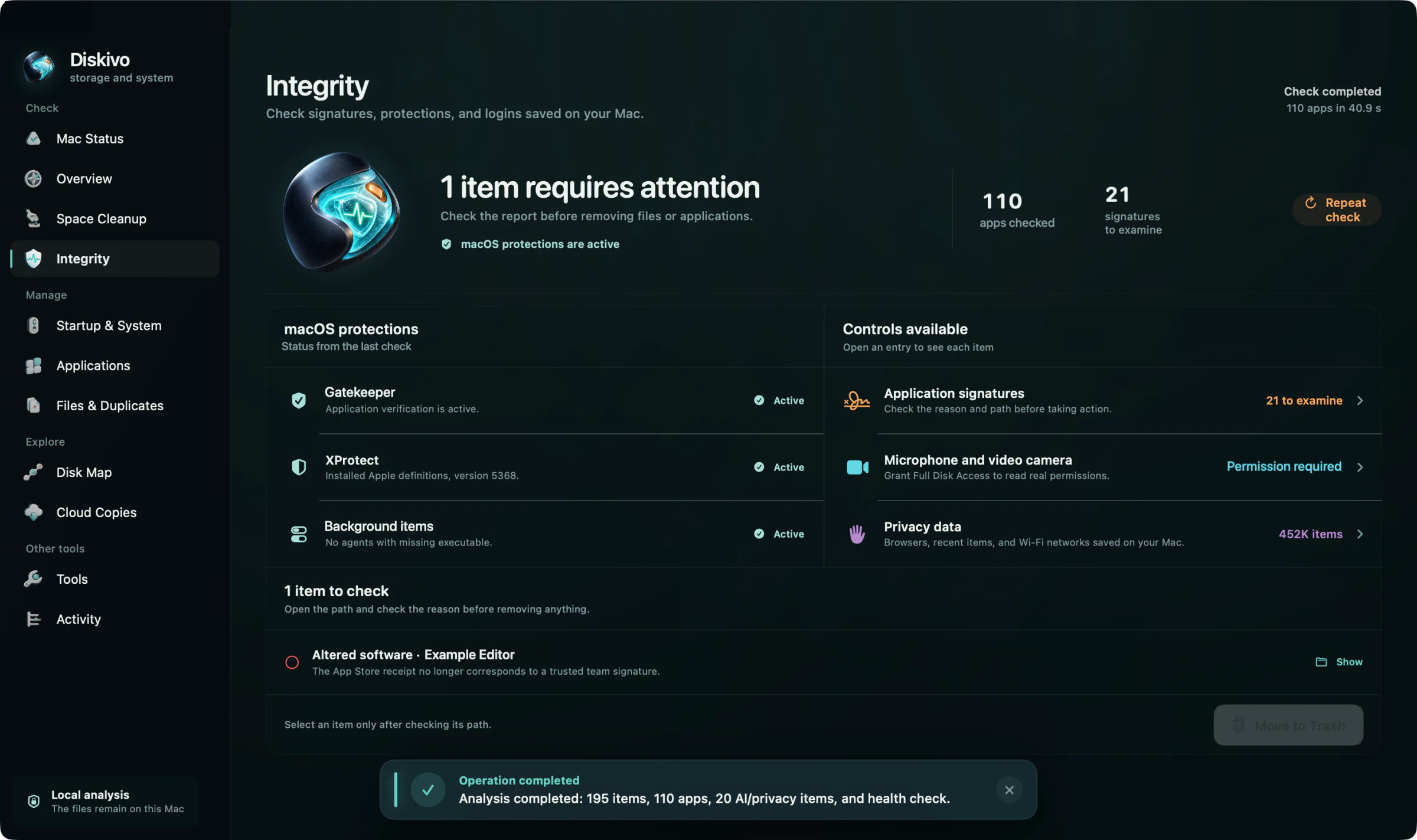
Read why an item was flagged
Review the details of a finding before deciding what to do. A check does not replace your judgment or guarantee the absence of every threat.
Let’s talk.
Describe what you were trying to do and what happened. Your Diskivo and macOS versions help us investigate without asking for data from your Mac.
Worksdem provides support for Diskivo.
Your message and email address are used to handle your support request. Read the privacy notice