

How to Find Large Files on Mac
A single export or a folder full of small files can take up a surprising amount of storage. Here’s where to look on your Mac and what to check before removing anything.
WorksdemWhere can you see the largest files on your Mac?
Open Documents in your Mac’s storage settings for a quick list of large files. Use Diskivo’s Disk Map when you want to measure a specific folder or trace storage usage across a drive.
Find large files in macOS storage settings
-
Open Storage
Choose Apple menu → System Settings → General → Storage. Wait for macOS to calculate storage use.
-
Show the large files list
Click the info button next to Documents and select Large Files. Sort by size to see which items take up the most space.
-
Check what you found
Use Show in Finder to locate an item. Before you remove a file, check whether it’s a replaceable export or the original a project still uses.
How to find large files with Disk Map
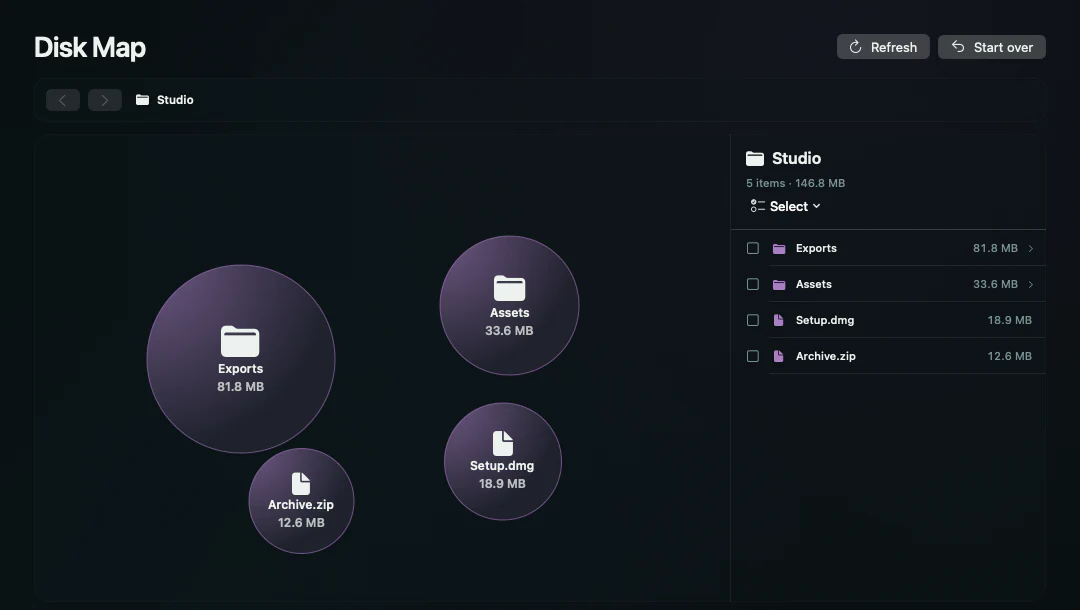
Diskivo’s Disk Map scans a drive or folder and shows where the space is going. Follow the largest bubbles to open the folders that take up the most room, then check file sizes in the list on the right.
-
Scan the drive or choose a folder
Open Disk Map in the sidebar. Use Analyze Macintosh HD if you don’t know where to look. Choose another folder to focus on Downloads, Documents, or a folder on a connected drive. If a map is already open, click Start over first.
-
Follow the largest bubbles
A larger bubble takes up more space. Click a bubble with a folder icon to see what it contains. Use the folder names at the top to go back a level.
-
Check individual file sizes
Use the list on the right to compare file sizes. Open Other items to see entries outside the main bubbles. Click a file for details.
What large files can you delete?
Check files you can replace
Old installers, disk images you’ve already used, and redundant exports are worth checking first. Verify you can download or recreate them before removing them.
Keep source files and libraries
A project file, Photos library, or virtual disk may look like one large item but hold a lot of work. Review it in the app that uses it and check your backup before moving it.
Move files you want to keep
Copy the file to an external drive and open that copy. Once you’ve verified it, decide what to do with the original.
Frequently asked questions
How can I filter large files by type or size?
In Files & Duplicates, scan the folder and open Large files. Use Type, Size, or Last accessed to narrow the list.
What does Limited access mean?
Diskivo could only read part of that location. Use Choose another folder to scan a folder you can access directly.
Why is a folder large when each file is small?
A folder includes the contents of all its subfolders. Open the folder in Disk Map and compare its branches to find where those files add up.
Can I find large files on an external drive?
Yes. In Disk Map, use Choose another folder and select a folder on the connected drive. Diskivo measures locations it can access.