

How to Find and Remove Duplicate Files on Mac
Importing or exporting a folder twice can leave copies in several places. Find which files have identical contents, then decide which copy to keep.
WorksdemWhere can you find duplicate files on a Mac?
For photos and videos in the Apple Photos library, use the Duplicates collection in Photos. For files in ordinary folders such as Downloads or Documents, scan the folder with Diskivo’s Files & Duplicates.
Merge duplicate photos and videos in Apple Photos
-
Open the Duplicates collection
Open Photos and look for Duplicates in the sidebar. If it’s missing, let Photos finish analyzing the library and check whether the relevant section is collapsed.
-
Review the photos and videos
Look through the groups you want to merge. Check edits and versions before deciding which images belong together.
-
Confirm the merge
Click Merge and confirm. Photos keeps the merged item in the library. Discarded copies go to Recently Deleted, where you can recover them for up to 30 days.
How to find and review duplicate files in Diskivo
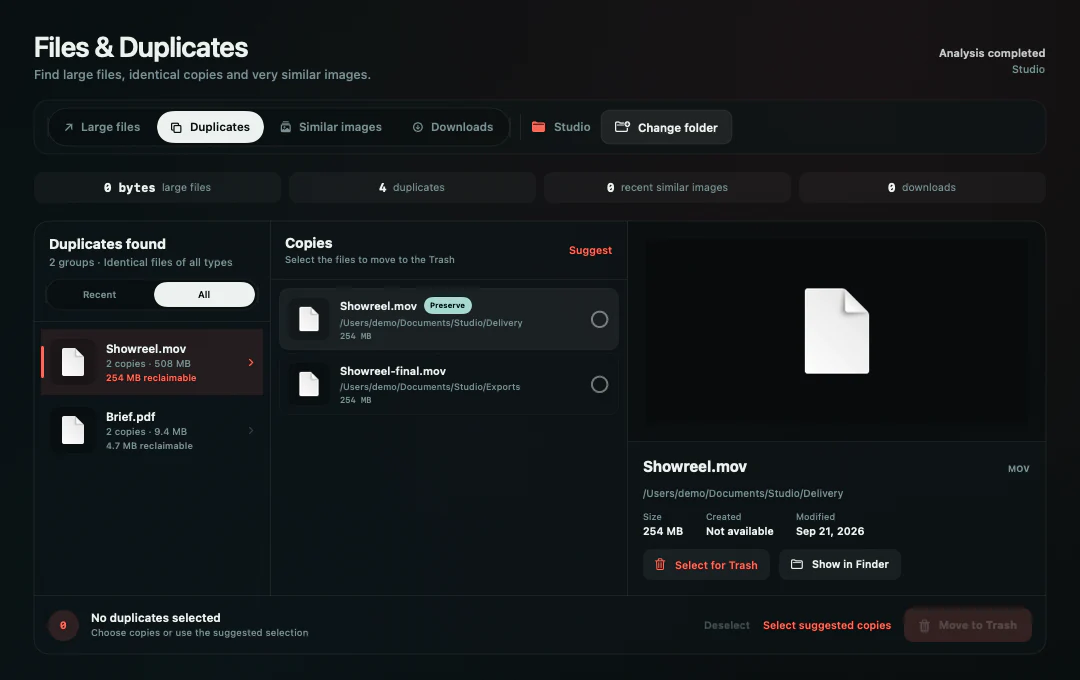
Diskivo groups files with identical contents in Duplicates. You can compare the copies and choose which ones to move to Trash. For photos that look alike, use the separate Similar images view.
-
Choose a folder to scan
In Files & Duplicates, use the folder icon to pick a location such as a folder you use for exports. If you already have results, click Change folder.
-
Open a group in Duplicates
Switch from Recent to All to see all detected groups. Open a group and compare the previews and file sizes.
-
Check which copy is left unselected
Select suggested copies leaves the oldest copy in each group unselected. If a project uses a particular copy, adjust the selection before confirming.
-
Move the selected copies to Trash
Check what you selected, click Move to Trash, and confirm.
Which copy can you remove?
Keep the copy your project uses
A project may point to one particular copy even when two files have identical contents. Check which one it uses before removing the other.
Compare similar images before choosing
Check resolution, crops, and edits. The high-resolution source and a smaller version you delivered may both be useful.
Frequently asked questions
Why does Recent show fewer duplicate groups?
Recent shows groups of recent images with at least one copy on the Desktop. Switch to All to see the other detected groups of identical files.
Can identical files have different names?
Yes. Diskivo compares file contents, so it can group identical copies even if you renamed one.
Should I scan inside a Photos library to find duplicates?
Use Duplicates in Apple Photos for items in its library. Use Diskivo for images you’ve exported or stored in ordinary folders.
Why might I recover less space than the estimate?
Files in Trash still occupy space. Some copies on an APFS volume can also share the underlying data, so the sum of file sizes can be higher than the amount of space you free up.